Docker packages applications into lightweight containers so you can run the same stack on a laptop, a CI runner, or a production host. This guide shows how to install Docker on Ubuntu from Docker’s official apt repository, what each command should print, and how to run your first containers.
Install steps follow Docker’s current apt repository flow (GPG key + sources.list entry). For a long-form community walkthrough of the same topic, see DigitalOcean’s Ubuntu Docker tutorial.
What you will learn
- Add Docker’s official apt repository on Ubuntu 20.04+
- Install
docker-ce, CLI, containerd, Buildx, and Compose
- Verify the daemon and run
hello-world
- Optionally run Docker without
sudo
- Use everyday
docker commands with sample output
Prerequisites
- An Ubuntu 20.04, 22.04, or 24.04 server (or desktop) with a non-root
sudo user
- Outbound HTTPS so
apt can reach download.docker.com
- About 10 minutes and a few hundred MB of disk for Engine + images
Step 1 — Update apt and install HTTPS prerequisites
Expected output (truncated; package counts vary):
Hit:1 http://archive.ubuntu.com/ubuntu jammy InRelease
Get:2 http://security.ubuntu.com/ubuntu jammy-security InRelease [129 kB]
Fetched 2,184 kB in 2s (1,012 kB/s)
Reading package lists... Done
Building dependency tree... Done
Then install packages apt needs for HTTPS repositories:
sudo apt install ca-certificates curl gnupg
Expected output (when packages are new):
Reading package lists... Done
Building dependency tree... Done
The following NEW packages will be installed:
  ca-certificates curl gnupg
...
Setting up ca-certificates (20240203) ...
Setting up curl (7.81.0-1ubuntu1.20) ...
Setting up gnupg (2.2.27-3ubuntu2.1) ...
If they are already installed, apt reports 0 upgraded, 0 newly installed.
Step 2 — Add Docker’s GPG key and apt repository
sudo install -m 0755 -d /etc/apt/keyrings
curl -fsSL https://download.docker.com/linux/ubuntu/gpg \
  | sudo gpg --dearmor -o /etc/apt/keyrings/docker.gpg
sudo chmod a+r /etc/apt/keyrings/docker.gpg
Expected output: these commands print nothing on success (curl is silent with -s). Errors usually mean no network or a bad path under /etc/apt/keyrings.
Add the Docker apt source and refresh the index:
echo "deb [arch=$(dpkg --print-architecture) signed-by=/etc/apt/keyrings/docker.gpg] https://download.docker.com/linux/ubuntu $(. /etc/os-release && echo "$VERSION_CODENAME") stable" \
  | sudo tee /etc/apt/sources.list.d/docker.list > /dev/null

sudo apt update
Expected output from apt update should include a line from Docker’s host, for example:
Hit:1 https://download.docker.com/linux/ubuntu jammy InRelease
Hit:2 http://archive.ubuntu.com/ubuntu jammy InRelease
Reading package lists... Done
Your Ubuntu codename (focal, jammy, noble, …) replaces jammy above.
Step 3 — Confirm docker-ce comes from Docker’s repo
apt-cache policy docker-ce
Expected output (version numbers change over time):
docker-ce:
  Installed: (none)
  Candidate: 5:27.5.1-1~ubuntu.22.04~jammy
  Version table:
     5:27.5.1-1~ubuntu.22.04~jammy 500
        500 https://download.docker.com/linux/ubuntu jammy/stable amd64 Packages
Installed: (none) is correct before the first install. The Candidate must list https://download.docker.com/linux/ubuntu — not only Ubuntu’s universe mirror.
Step 4 — Install Docker Engine
sudo apt install docker-ce docker-ce-cli containerd.io docker-buildx-plugin docker-compose-plugin
Expected output (abbreviated):
Reading package lists... Done
The following NEW packages will be installed:
  containerd.io docker-buildx-plugin docker-ce docker-ce-cli docker-compose-plugin
...
Setting up containerd.io (1.7.25-1) ...
Setting up docker-ce-cli (5:27.5.1-1~ubuntu.22.04~jammy) ...
Setting up docker-ce (5:27.5.1-1~ubuntu.22.04~jammy) ...
Created symlink /etc/systemd/system/multi-user.target.wants/docker.service → /lib/systemd/system/docker.service.
Confirm with:
sudo systemctl status docker
Expected output (press q to quit the pager):
● docker.service - Docker Application Container Engine
     Loaded: loaded (/lib/systemd/system/docker.service; enabled; vendor preset: enabled)
     Active: active (running) since Fri 2026-08-21 10:15:03 UTC; 12s ago
TriggeredBy: ● docker.socket
       Docs: https://docs.docker.com
   Main PID: 2148 (dockerd)
      Tasks: 8
     Memory: 42.1M
        CPU: 312ms
     CGroup: /system.slice/docker.service
             └─2148 /usr/bin/dockerd -H fd:// --containerd=/run/containerd/containerd.sock
Look for Active: active (running). If the service is stopped:
sudo systemctl start docker
Expected output: no message on success. Re-run status to confirm.
Optional version check:
Expected output:
Docker version 27.5.1, build 9fceb4c
Step 5 — Smoke-test with hello-world
sudo docker run hello-world
Expected output:
Unable to find image 'hello-world:latest' locally
latest: Pulling from library/hello-world
c1ec31eb5944: Pull complete
Digest: sha256:…
Status: Downloaded newer image for hello-world:latest

Hello from Docker!
This message shows that your installation appears to be working correctly.

To generate this message, Docker took the following steps:
 1. The Docker client contacted the Docker daemon.
 2. The Docker daemon pulled the "hello-world" image from the Docker Hub.
 3. The Docker daemon created a new container from that image…
 4. The Docker daemon streamed that output to the Docker client…

To try something more ambitious, you can run an Ubuntu container…
That confirms client ↔ daemon ↔ Docker Hub connectivity.
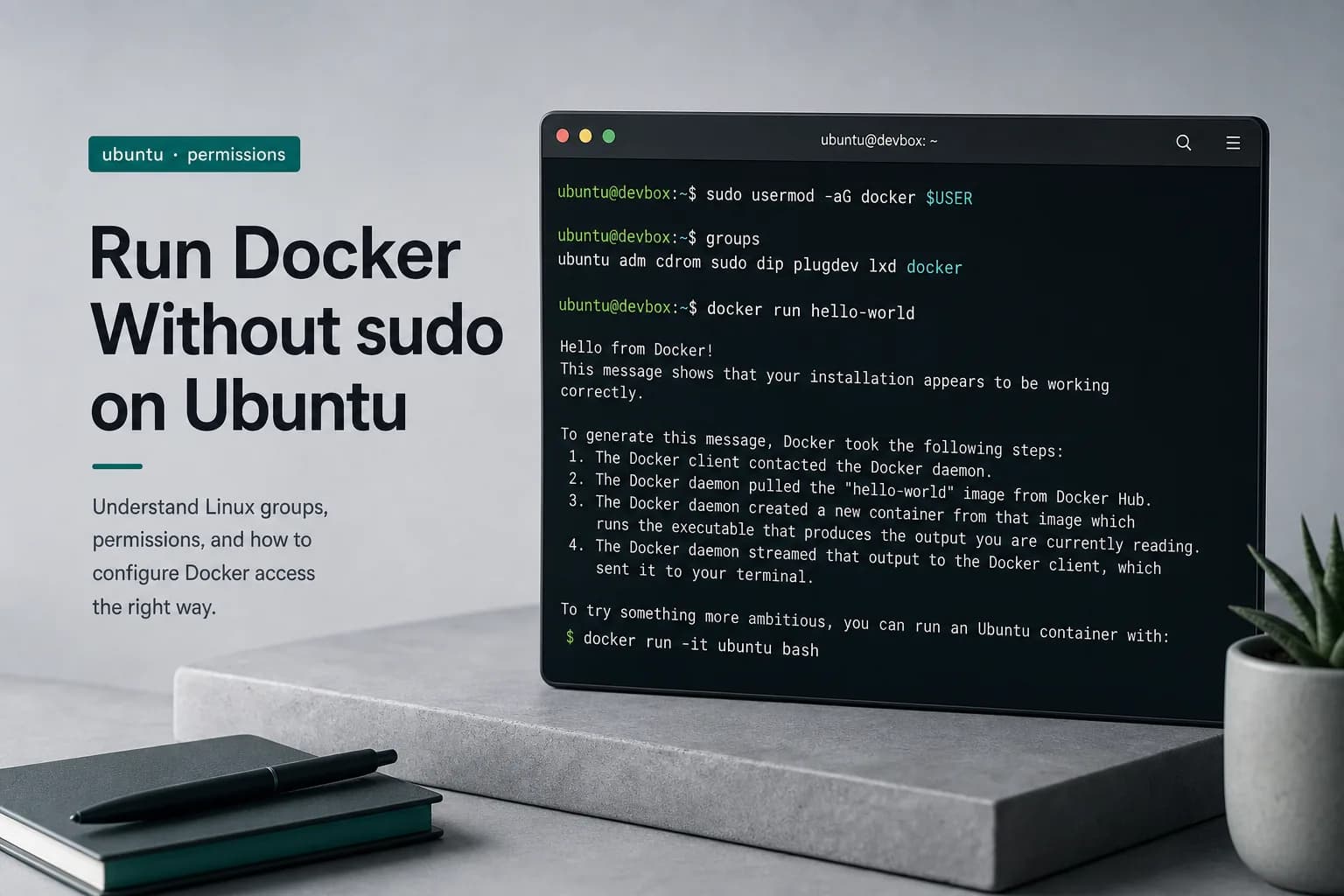
Step 6 — Optional: run Docker without sudo
Without the docker group, a plain docker call fails:
Expected output (before group membership):
permission denied while trying to connect to the Docker daemon socket at unix:///var/run/docker.sock: …
Add your user:
sudo usermod -aG docker "$USER"
Expected output: no message on success.
Apply the group (new login shell or newgrp):
Expected output from groups (order varies):
Then:
docker run --rm hello-world
Expected output: the same “Hello from Docker!” block as Step 5, without sudo. Membership in docker is effectively root-equivalent — treat it like privileged access. Deep dive: Run Docker Without sudo on Ubuntu.
Step 7 — Everyday commands (with sample output)
Pull an Ubuntu image:
Expected output:
Using default tag: latest
latest: Pulling from library/ubuntu
…: Pull complete
Digest: sha256:…
Status: Downloaded newer image for ubuntu:latest
docker.io/library/ubuntu:latest
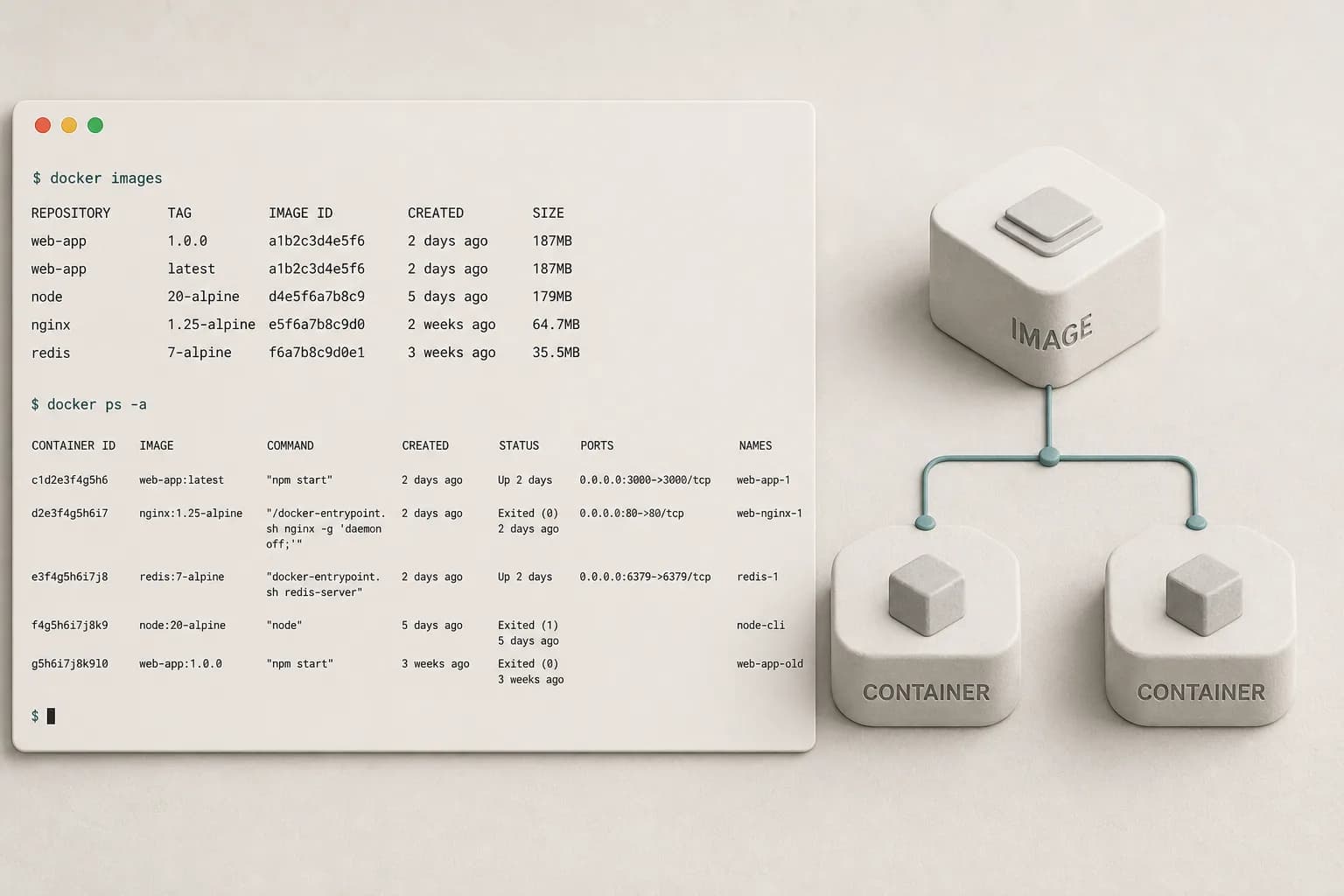
List local images:
Expected output:
REPOSITORY    TAG       IMAGE ID       CREATED        SIZE
ubuntu        latest    1d622ef86b13   3 weeks ago    78.1MB
hello-world   latest    74cc54a32868   4 months ago   13.3kB
Interactive shell (exits when you type exit):
docker run -it --rm ubuntu bash
Expected output: prompt changes to something like root@a1b2c3d4e5f6:/#. Type exit to leave; --rm deletes the container.
List all containers:
Expected output (IDs and names differ):
CONTAINER ID   IMAGE         COMMAND    CREATED         STATUS                     NAMES
587000e49d53   hello-world   "/hello"   5 minutes ago   Exited (0) 5 minutes ago   adoring_kowalevski
Remove a stopped container:
docker rm adoring_kowalevski
Expected output:
More patterns: Working with Docker Images and Containers.
FAQ
Which Ubuntu versions does this guide cover?
Ubuntu 20.04 (Focal), 22.04 (Jammy), and 24.04 (Noble). The VERSION_CODENAME substitution picks the matching Docker suite automatically.
Should I install docker.io from Ubuntu’s default repos?
Prefer docker-ce from Docker’s official repository so you get current Engine, Buildx, and the Compose plugin. docker.io often lags.
How do I uninstall Docker later?
sudo apt purge docker-ce docker-ce-cli containerd.io docker-buildx-plugin docker-compose-plugin
sudo rm -rf /var/lib/docker /var/lib/containerd
Removing /var/lib/docker deletes images, containers, and volumes permanently.
What’s next
Wrap-up
You installed Docker CE from Docker’s official Ubuntu repository, verified systemctl shows the daemon running, and confirmed the install with hello-world. Keep packages updated with sudo apt update && sudo apt upgrade, and prefer Compose or Dockerfiles over long-lived interactive containers for anything you intend to ship.